 Agip Arzaki Maulana
Transfer Stock, one flow for two platforms
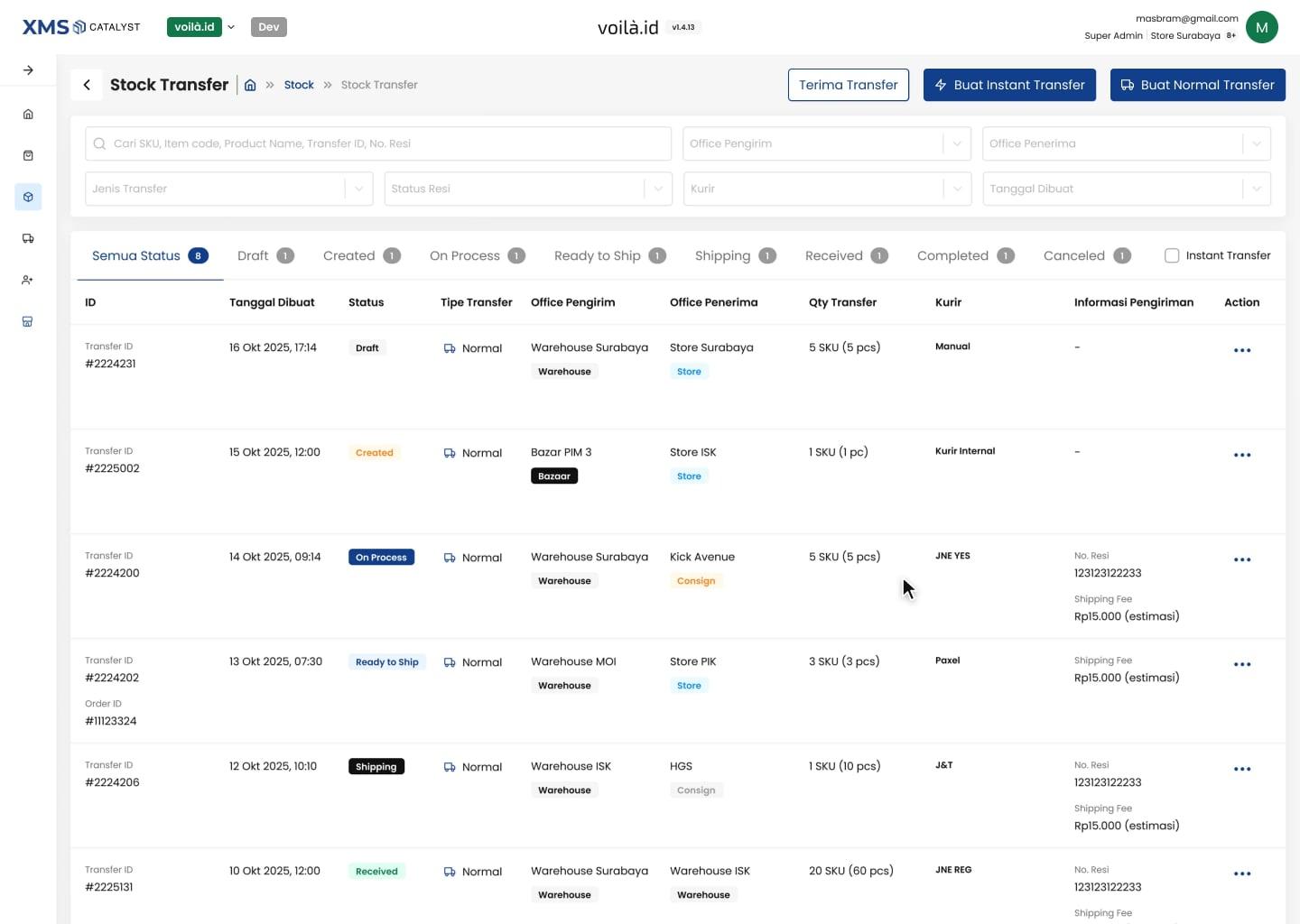
Moving stock between warehouses, stores and consignment partners used to happen in two tools with two different flows: voilà.id's XMS and the Jamtangan.com inventory system. I brought both into XMS Catalyst as one Transfer Stock module, and shaped it with the product manager through rounds of stakeholder presentations and feedback.
- Role
- Product Designer - end-to-end UX and UI
- Company
- Catalyst Tech
Overview
What is Transfer Stock
Transfer Stock moves inventory between offices: warehouses, stores, bazaars and consignment partners. Every transfer is picked, packed, handed to a courier or driver, and received on the other side, with item codes tracked at each step so stock stays accurate.
Why it moved to XMS Catalyst
Machtwatch was bringing its brands' back-office tools into XMS Catalyst, one internal platform with a brand switcher in the header. Transfer Stock was one of the modules that had to move in, and it had to work for both voilà.id and Jamtangan.com teams from day one.
Challenges
Two platforms, two flows
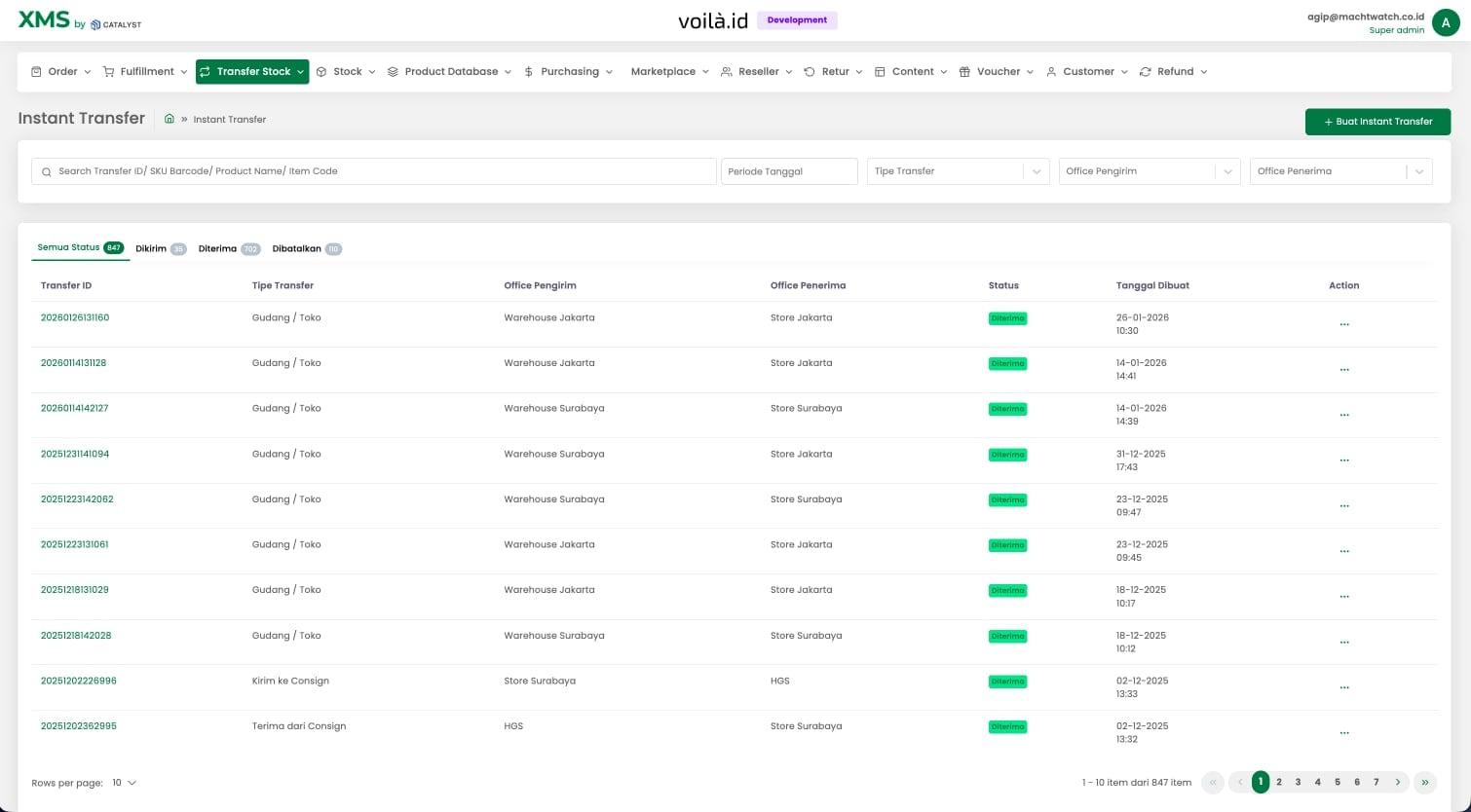
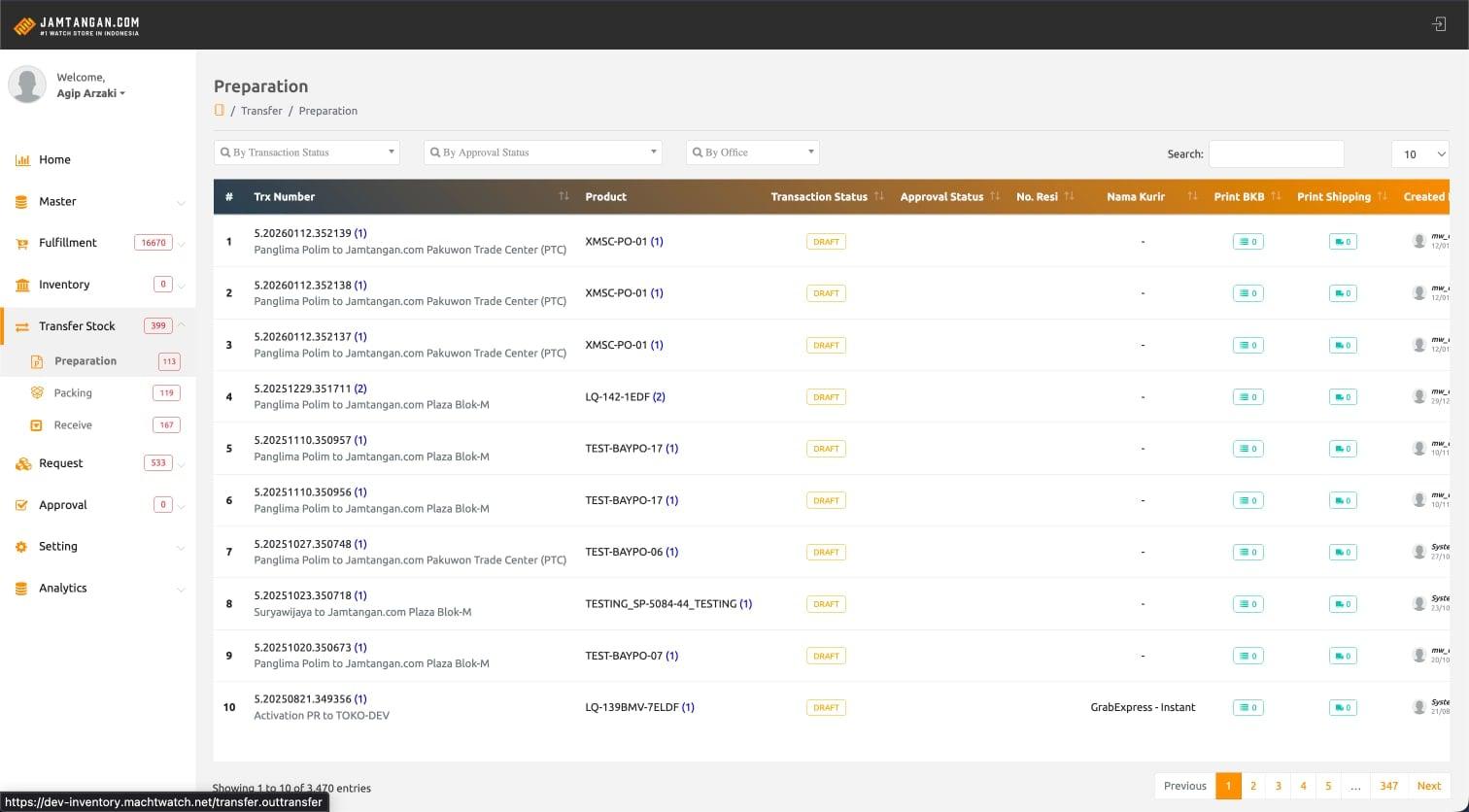
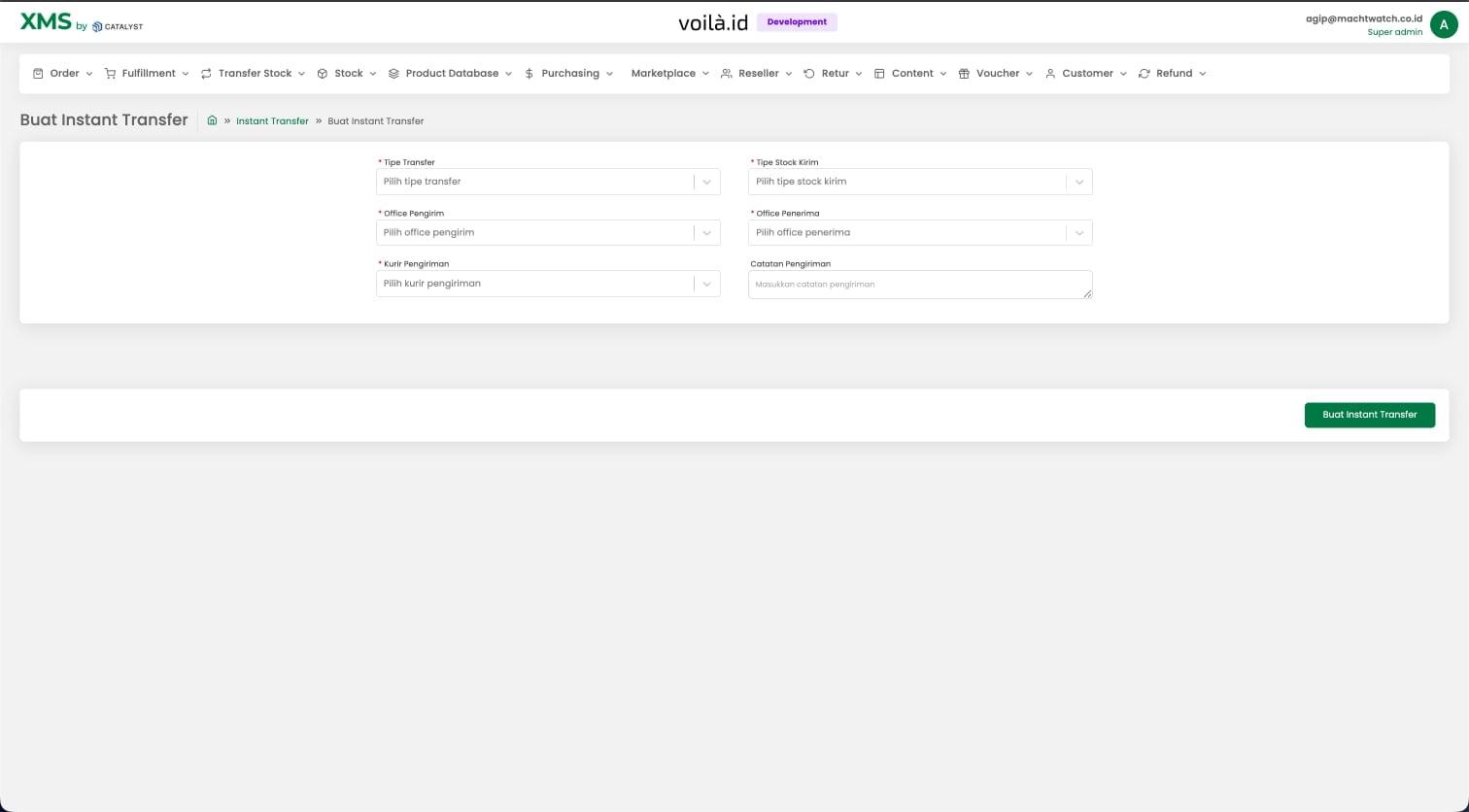
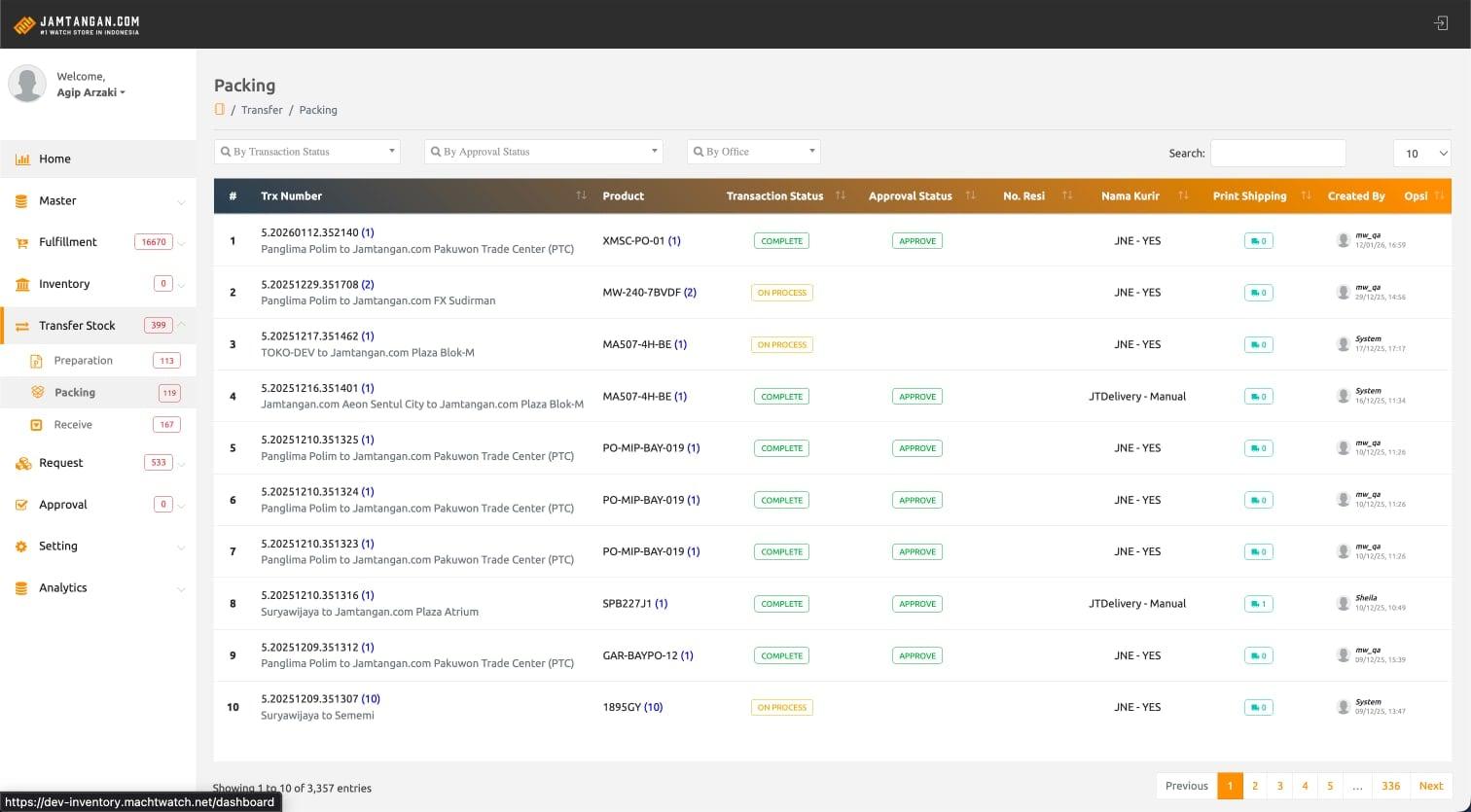
voilà.id ran transfers in its XMS as a short Instant Transfer form, a list and a receive screen. Jamtangan.com used a separate inventory system where the same job was split into Preparation, Packing and Receive menus, each with its own table, statuses and print buttons.
Same job, different words
Teams that touched both brands had to learn two tools, two sets of statuses and two ways to hand stock to a courier. Merging them meant deciding which steps every transfer needs, which ones only some transfer types need, and not losing anything either team relied on.
One Transfer Stock module in XMS Catalyst that covers normal and instant transfers for both brands, in a single status flow from draft to completed.
Design process
The product manager came with a clear brief: one module, both brands, no lost features. I worked through it in four loops, and every loop ended in front of stakeholders before the next one started.
- 01
Audit both platforms
Mapped every screen, field, status and print action in voilà.id XMS and the Jamtangan.com inventory system side by side, then sorted them into steps every transfer needs and steps only some types need.
- 02
One status model
Merged Preparation, Packing and Receive into one lifecycle: Draft, Created, On Process, Ready to Ship, Shipping, Received, then Completed or Canceled. Instant transfers skip the steps they don't need instead of living in a separate tool.
- 03
Present, listen, iterate
Together with the PM I presented the flows to warehouse, store and operations stakeholders. Each round of feedback became its own improvement page in Figma, so every change has a reason and a date next to it.
- 04
Design every edge case
Item codes that run out mid-transfer, invalid or unregistered scans, resetting the form when the sender office changes, partial imports, integrated couriers versus internal drivers. Each one got its own screen before handoff.
- Draft
- Created
- On Process
- Ready to Ship
- Shipping
- Received
- Completed
Instant Transfer only: create, Dikirim, Diterima, Dibatalkan
Three menus: Preparation, Packing, Receive
Designing it
Normal and instant, one create form
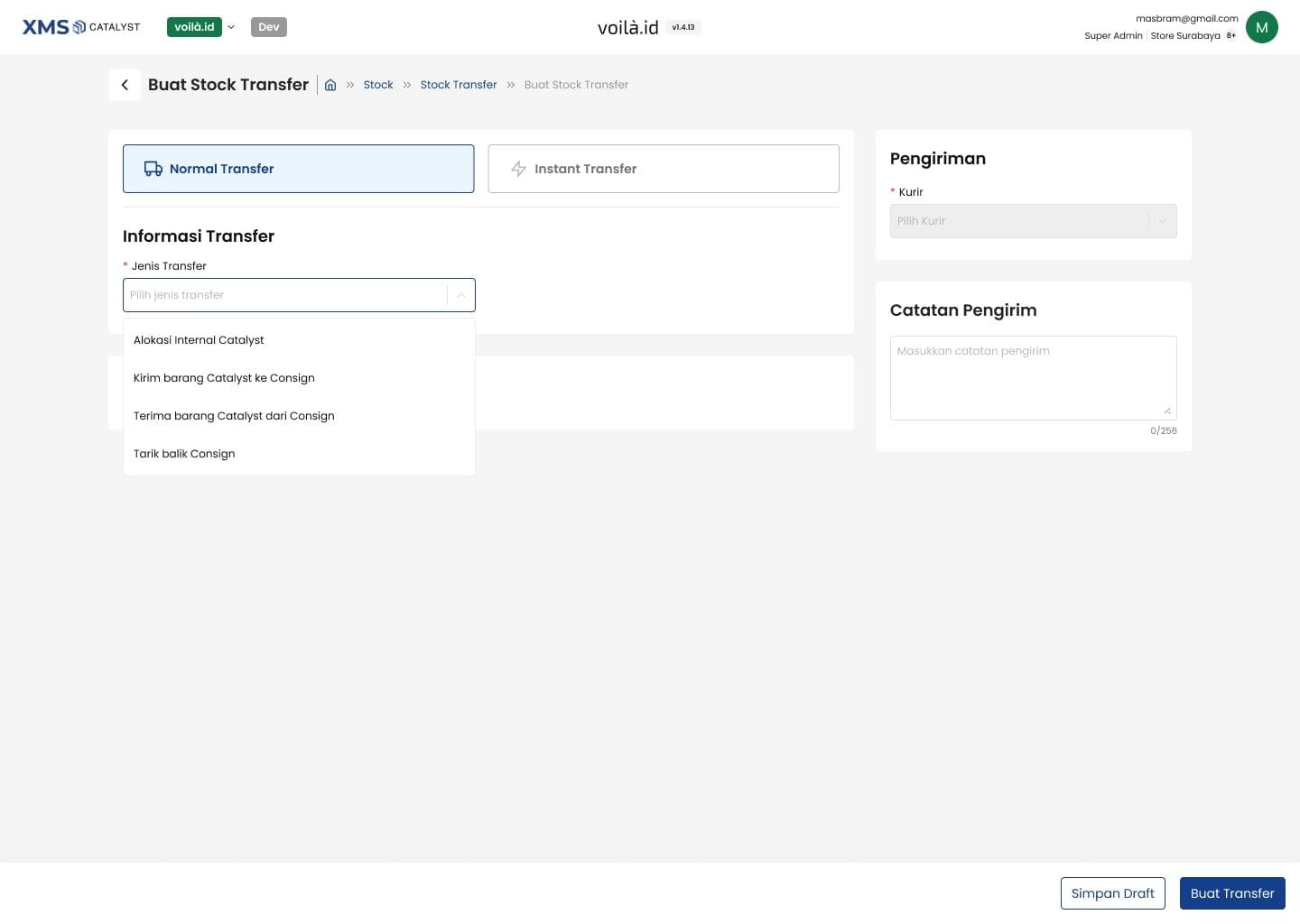
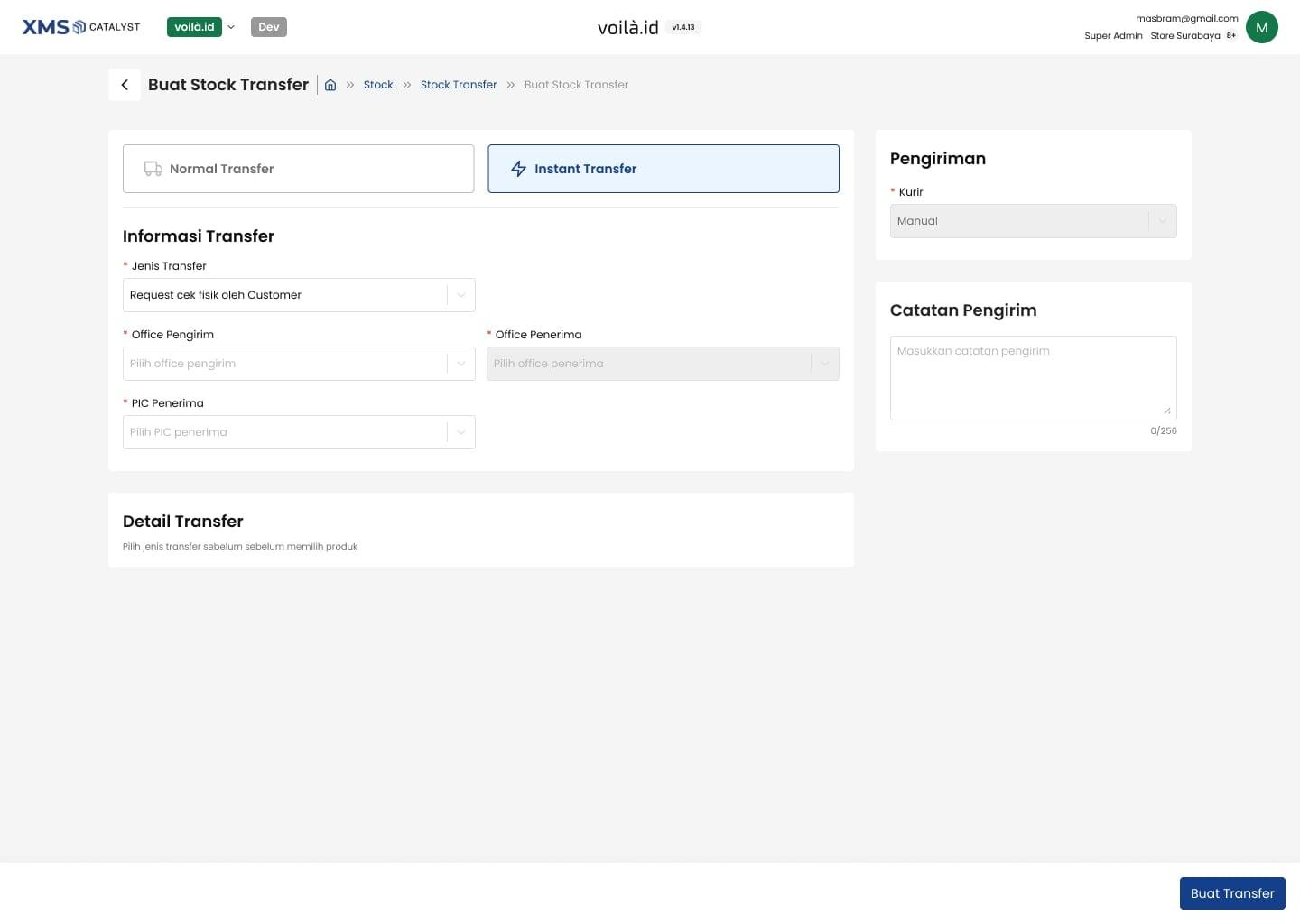
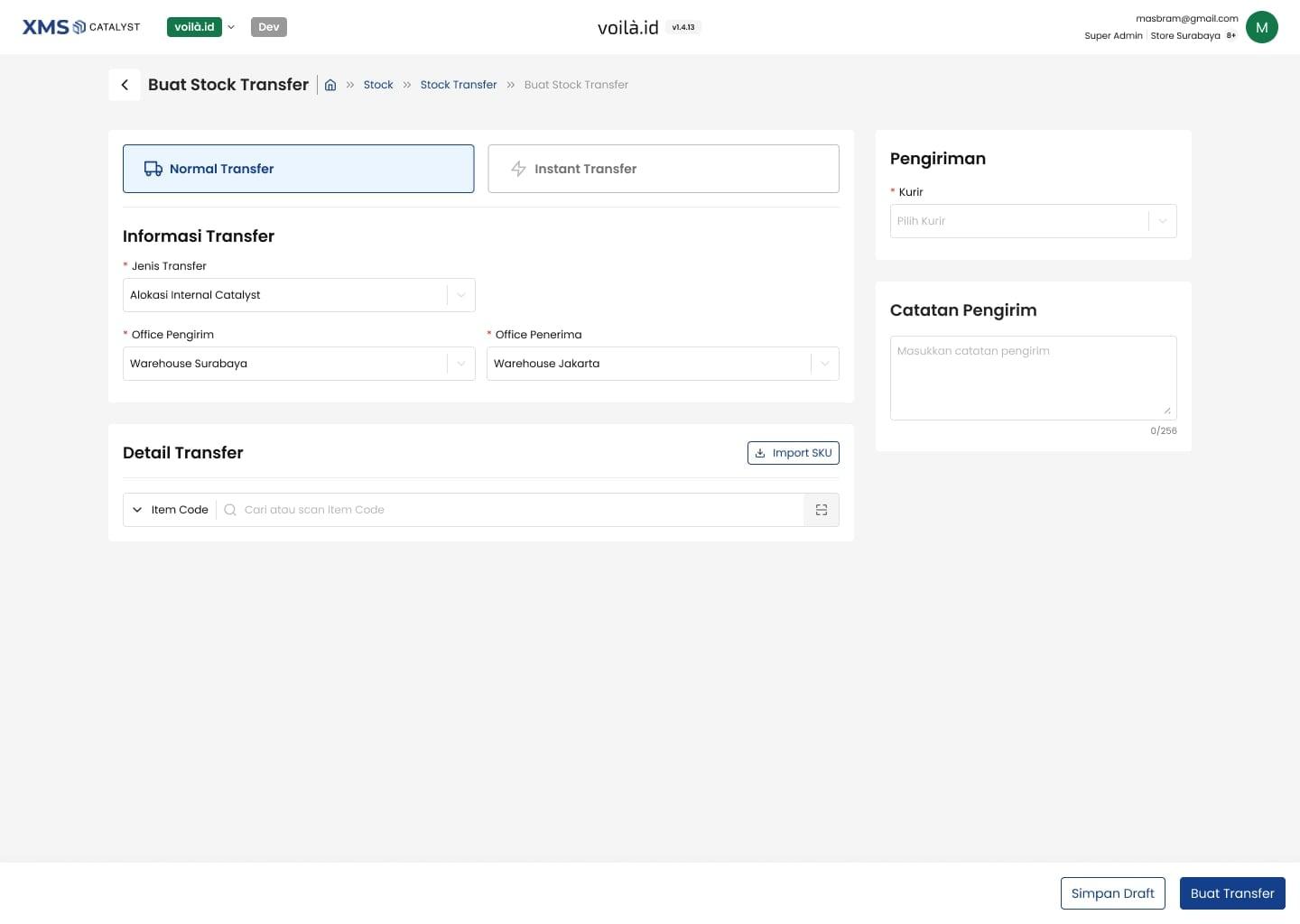
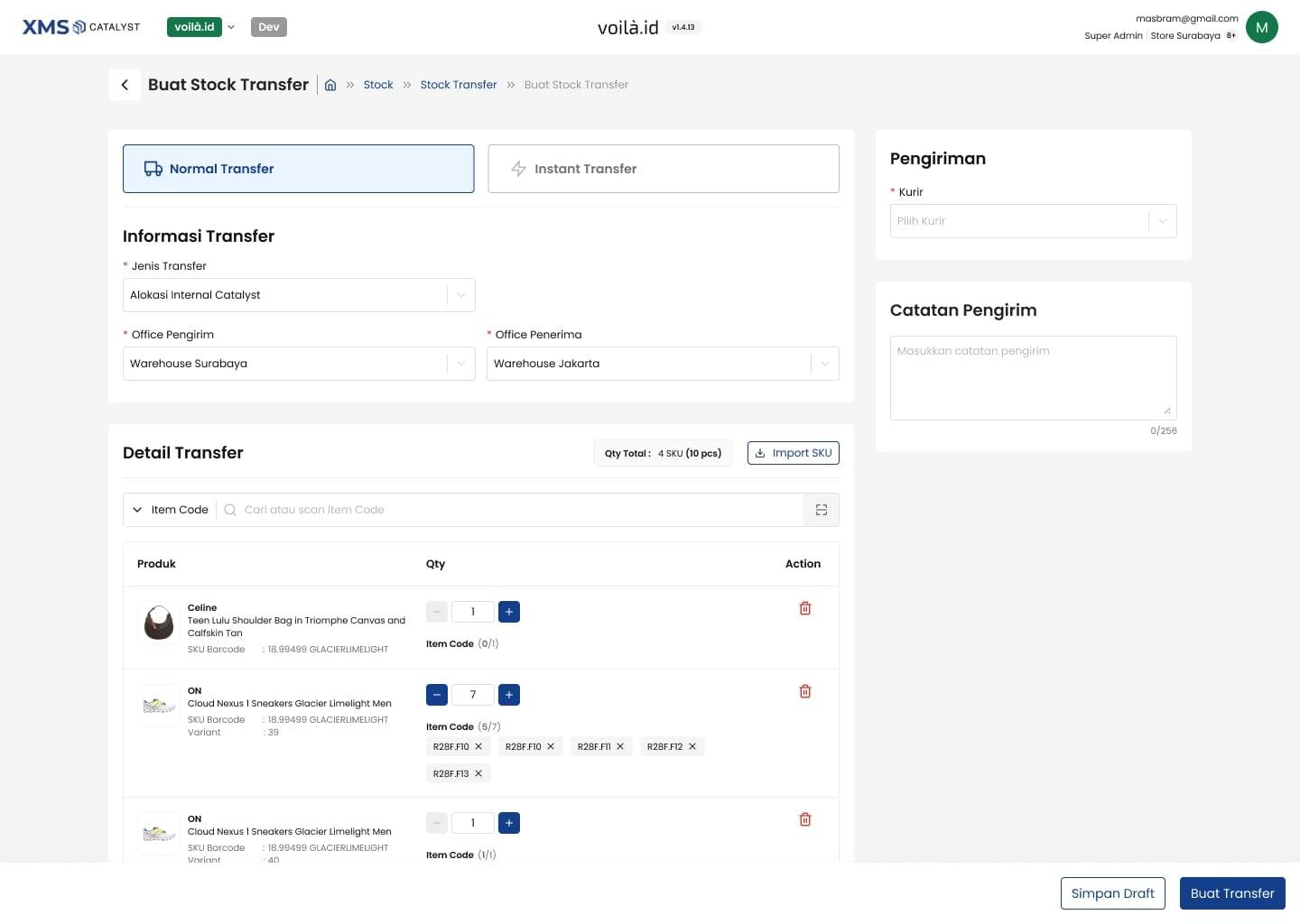
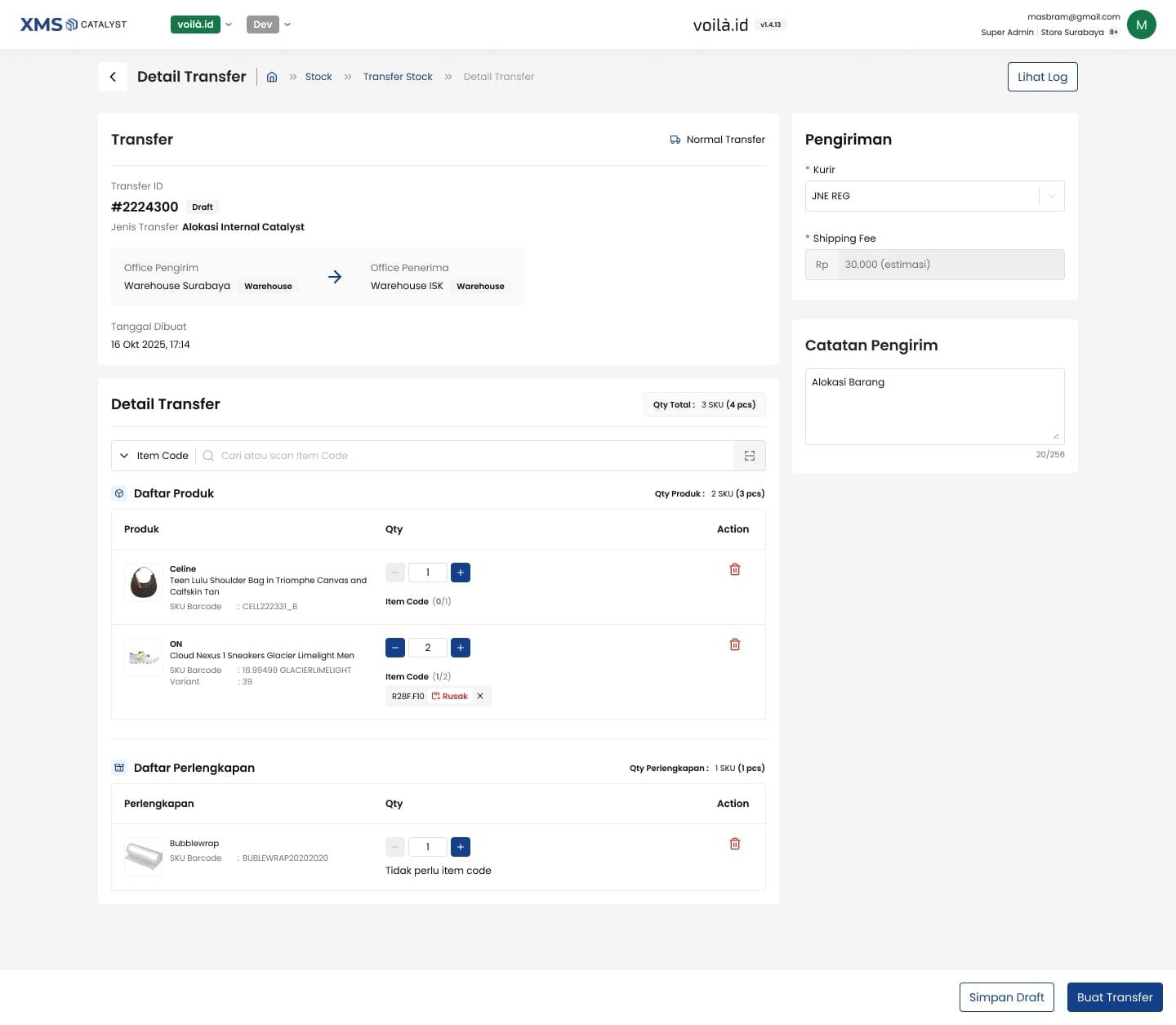
Instead of two tools, a toggle at the top of one form switches between Normal Transfer and Instant Transfer. Jenis Transfer sets the rules, internal allocation or the three consignment types, and the form only asks for what that type needs: sender and receiver office, courier, a note, then the items by scan or search.
Every status gets its own screen
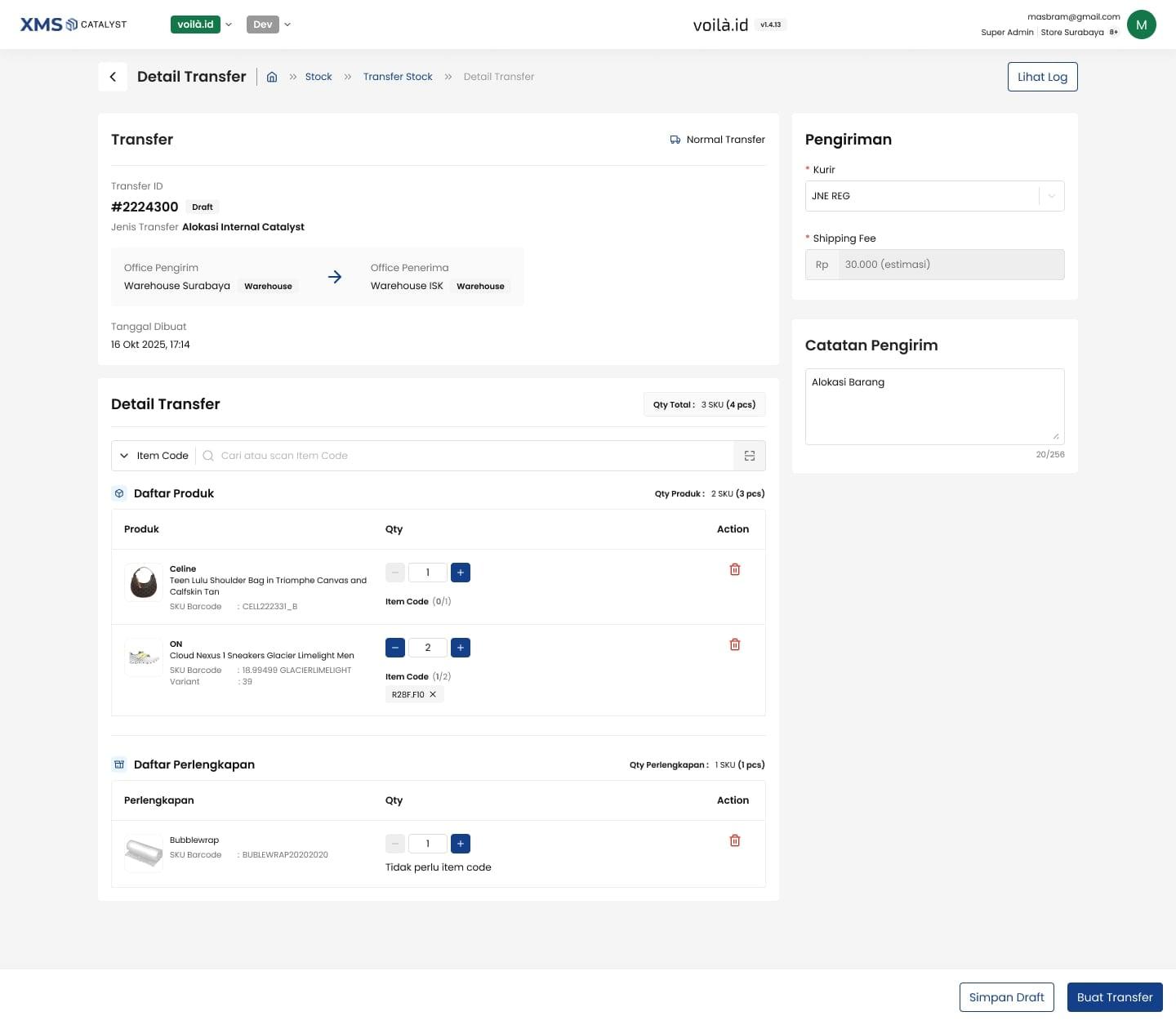
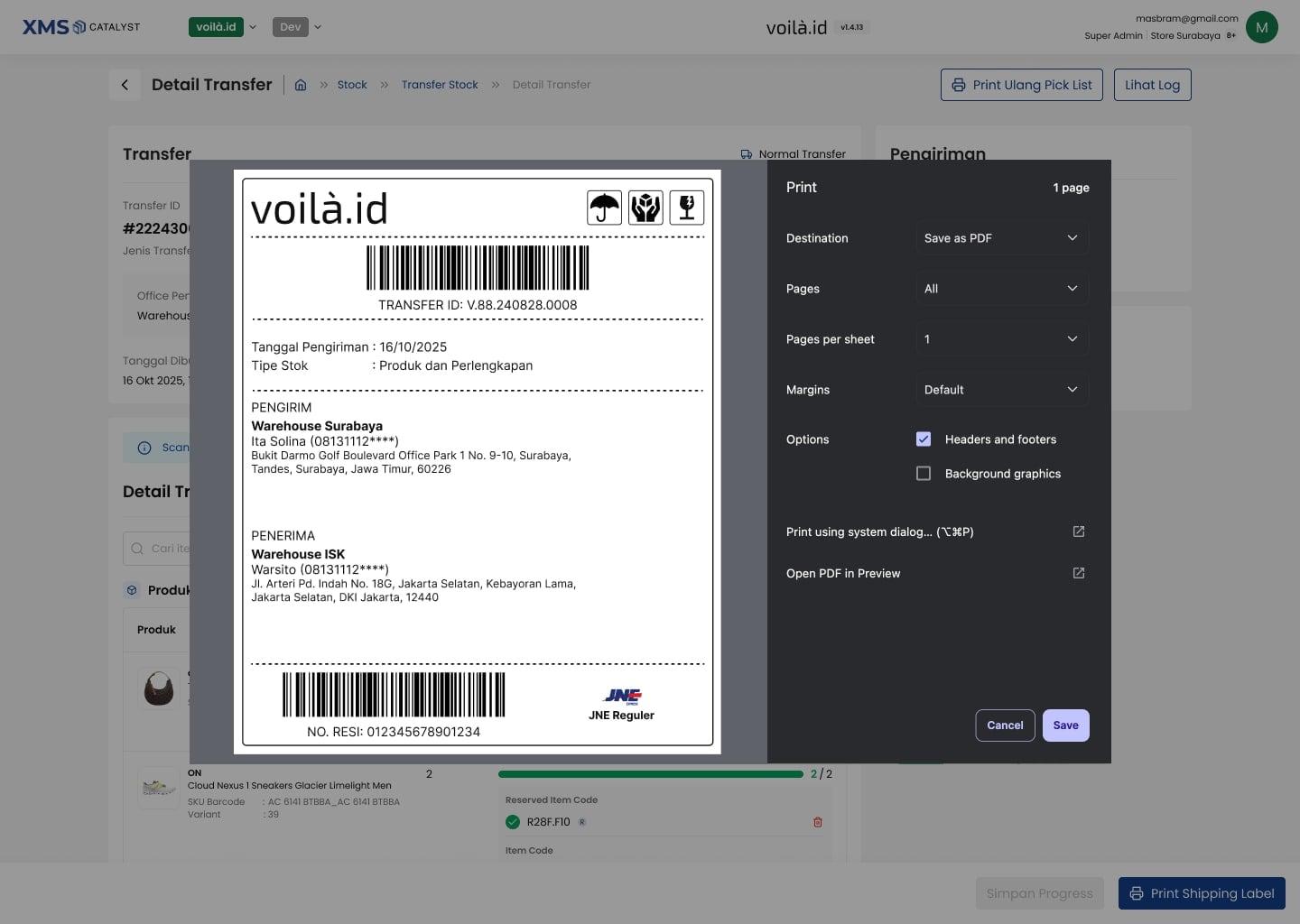
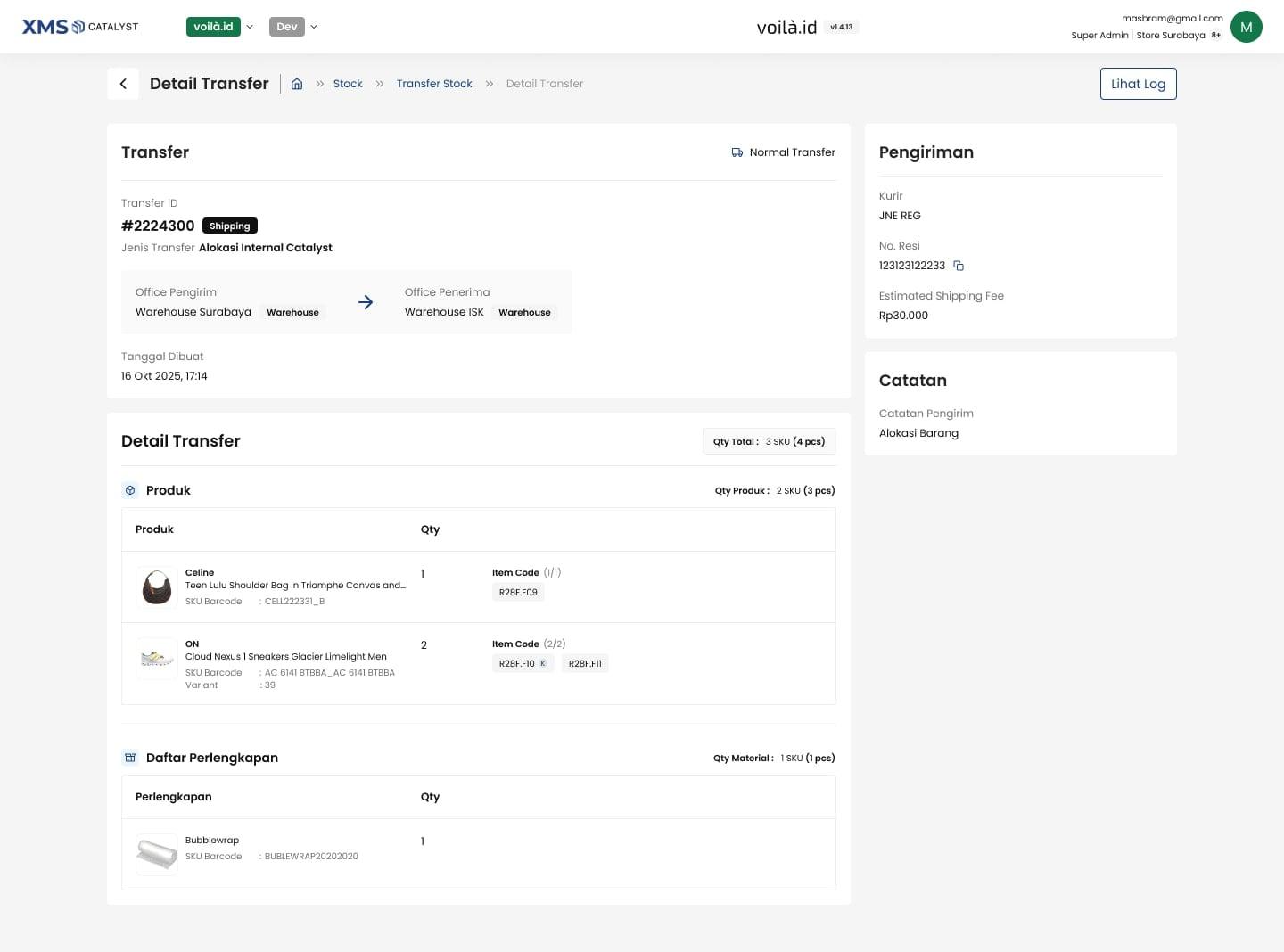
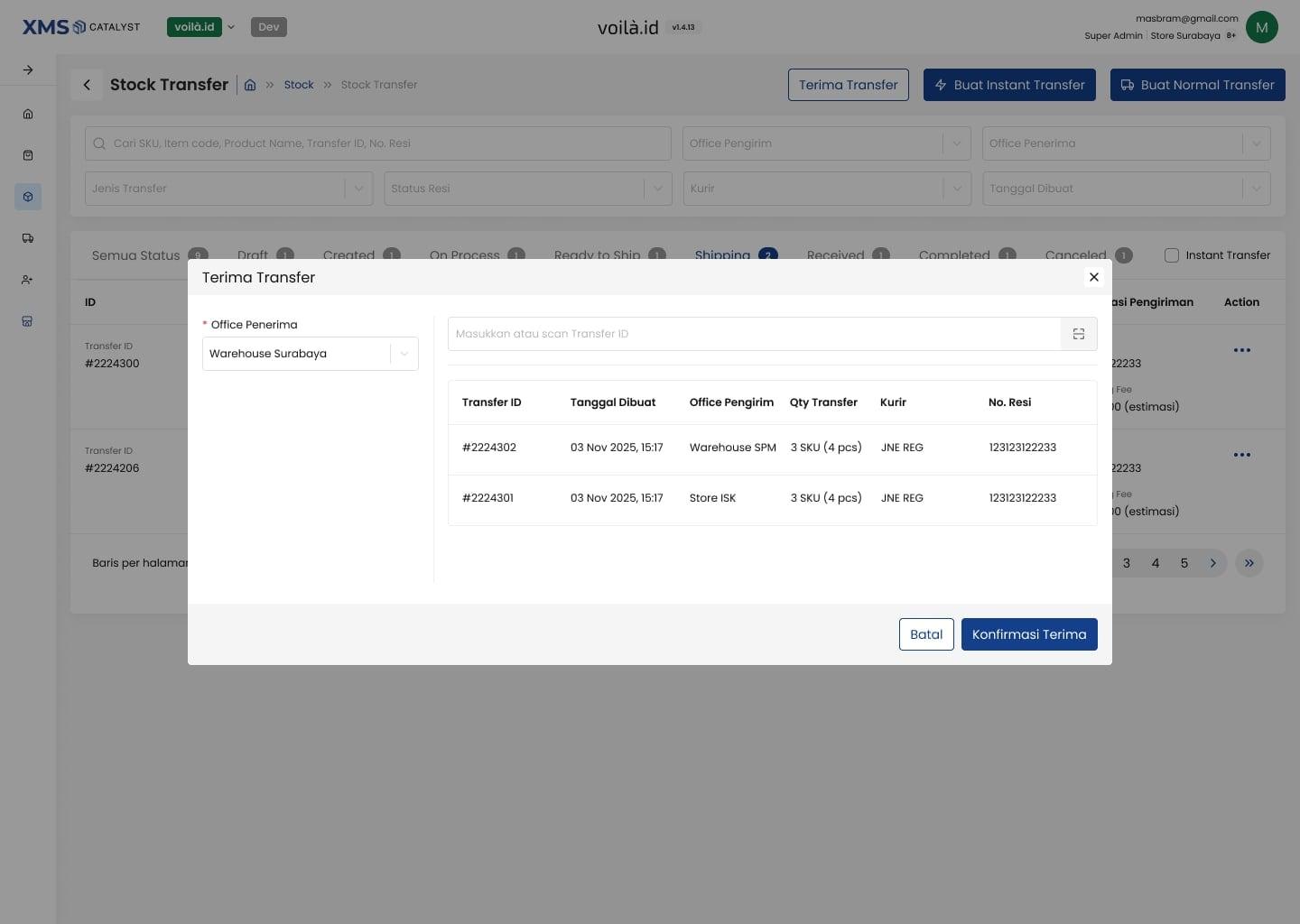
The detail page follows the transfer through its lifecycle. Draft is still editable, On Process prints the picklist, Ready to Ship prints the shipping label and the handover receipt for the courier, and the receiving office confirms what arrived with Terima Transfer, scanning item codes against what was sent.
Import SKU for bulk transfers
Some transfers move many SKUs at once, so the form also takes a spreadsheet. The import checks every row against the sender office's stock: valid SKUs land in the list, the rest come back with a reason, and a partial import never blocks the valid part. Changing the transfer type or sender office after an import asks before it resets anything.
Iterations
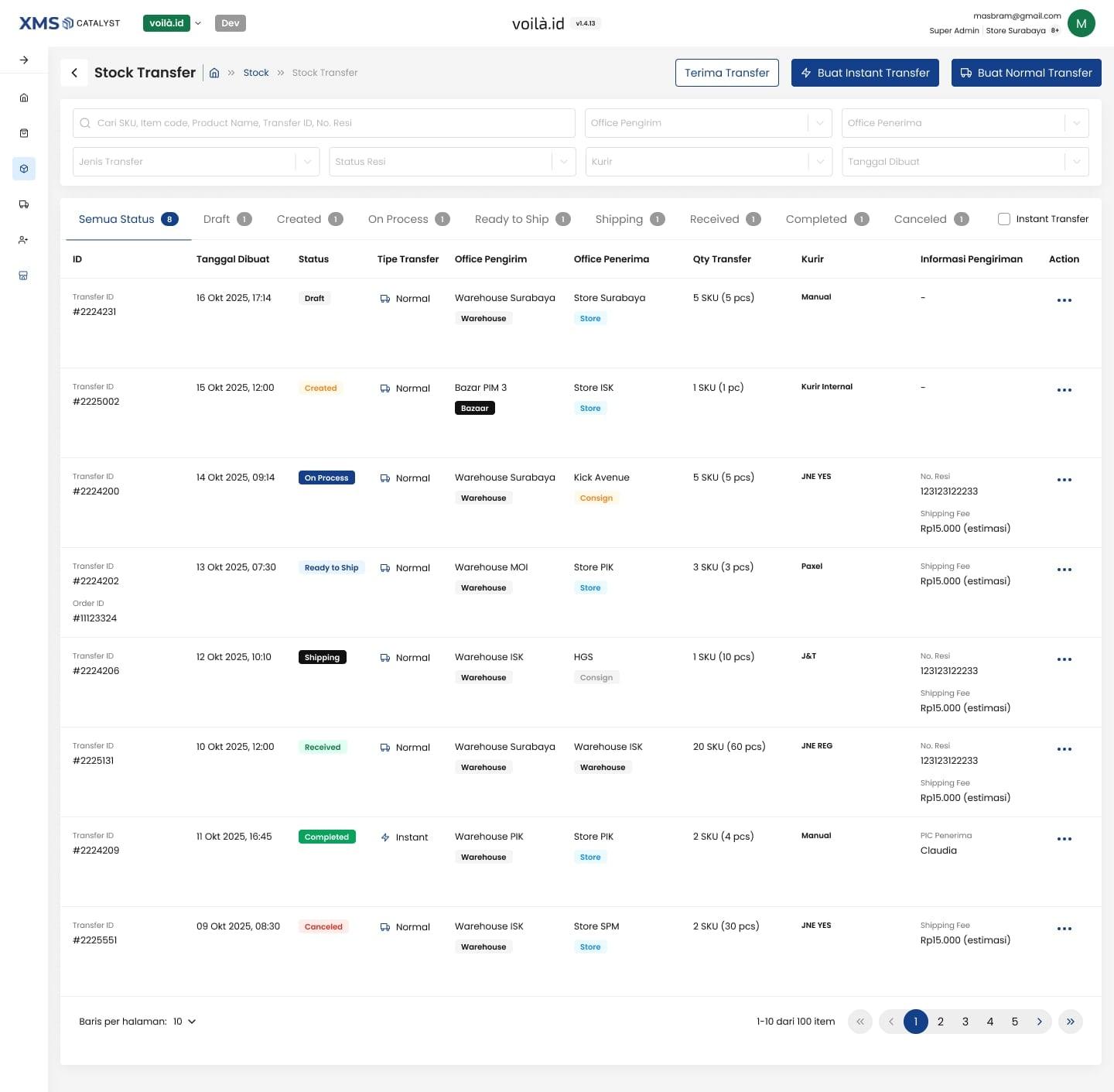
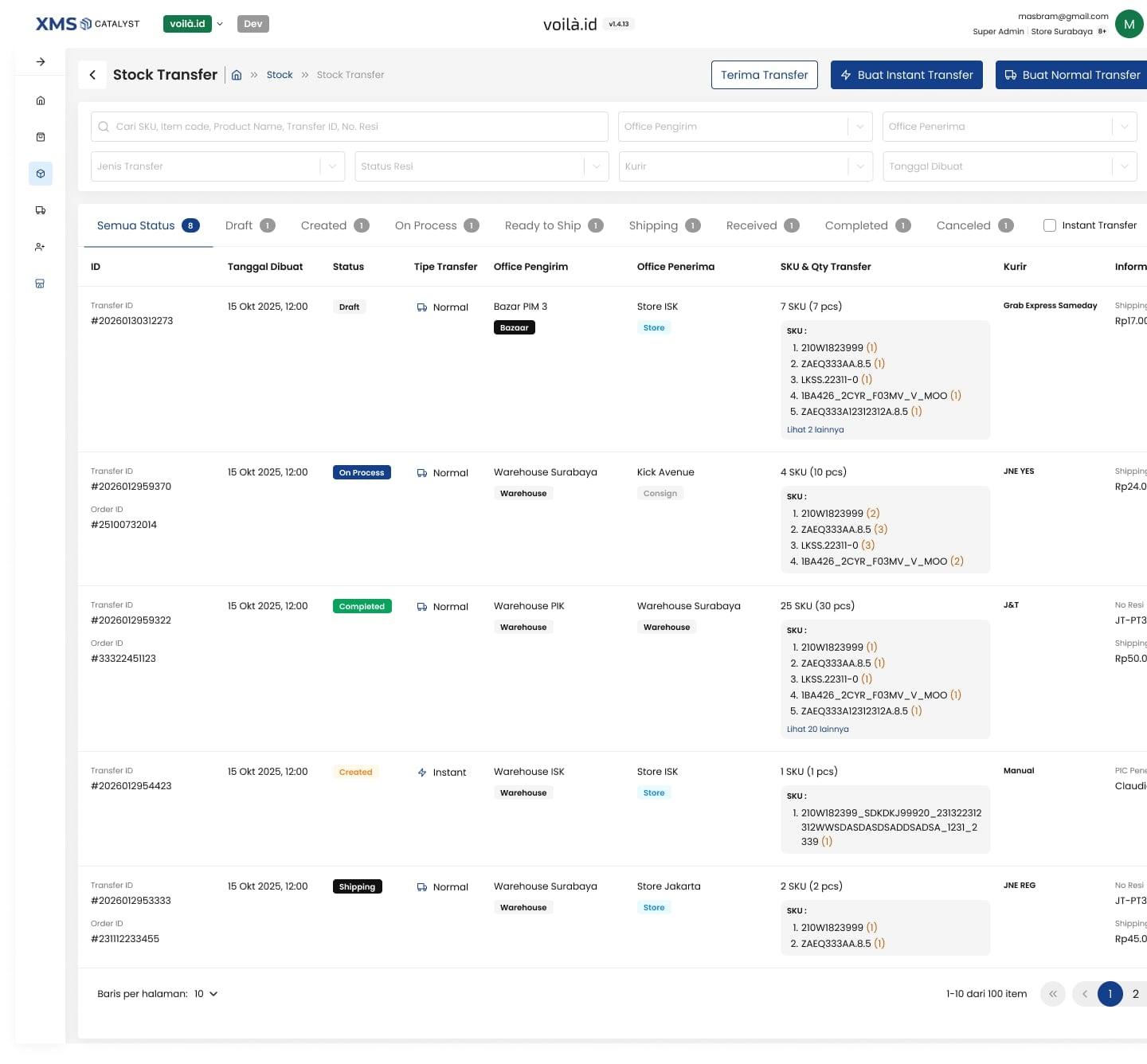
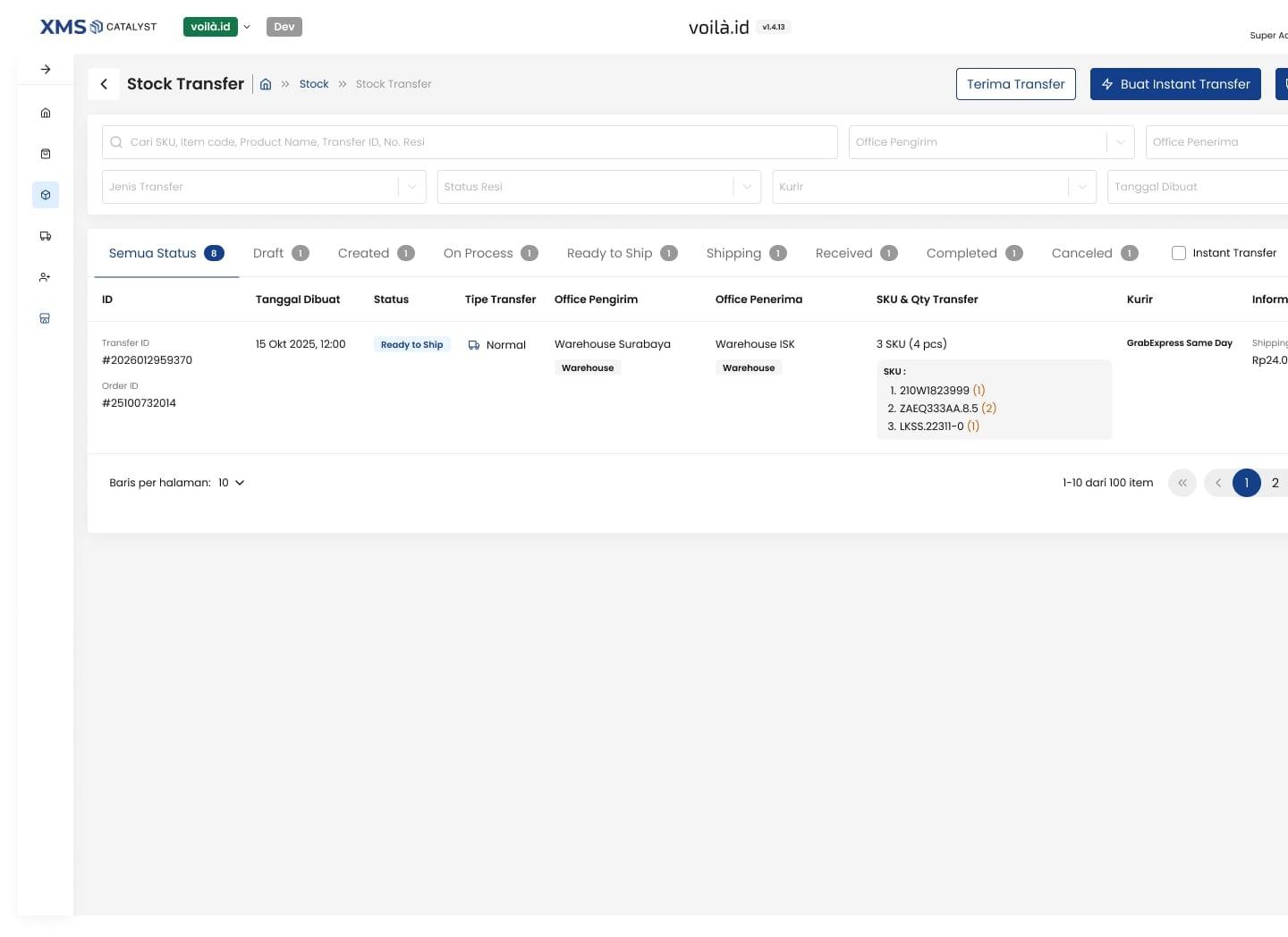
Launch was the start, not the end. With the product manager I kept presenting to the warehouse, store and operations teams, and each round of feedback shipped as a focused improvement:
- SKU
SKU and quantity in the list
The list used to show only a quantity. It now shows up to five representative SKUs with their quantity, plus the PIC who created the transfer, so teams can tell transfers apart without opening each one.
- Driver
Instant delivery from the list
Request a driver, enter the shipping fee, track the delivery and cancel a request without leaving the list. The fee locks when the courier is integrated.
- Rusak
Damaged stock, made visible
A Rusak badge for damaged item codes, opened up for every normal transfer type and shown the same way in create and detail.
- Terima
Receiving and handover
Faster Terima Transfer, reprinting the courier handover receipt, a total product count, copying the Transfer ID from detail, a sticky header for long lists and a log per division.
What I learned
Merge the job, not the screens
Copying both tools side by side would have kept two flows inside one app. Mapping the work itself, step by step, is what made one lifecycle possible.
Stakeholders are part of the design loop
Presenting with the PM every round caught gaps a spec never shows, like teams needing to see which SKUs are in a transfer before opening it.
Keep the trail
Dated improvement pages in Figma made it easy to answer why something changed, months later, for engineering and for new stakeholders.
The team
- Product DesignerAgip Arzaki Maulana
- Product ManagerJordi Kurnaidi
- EngineeringXMS Catalyst team
Next case study
03 / 04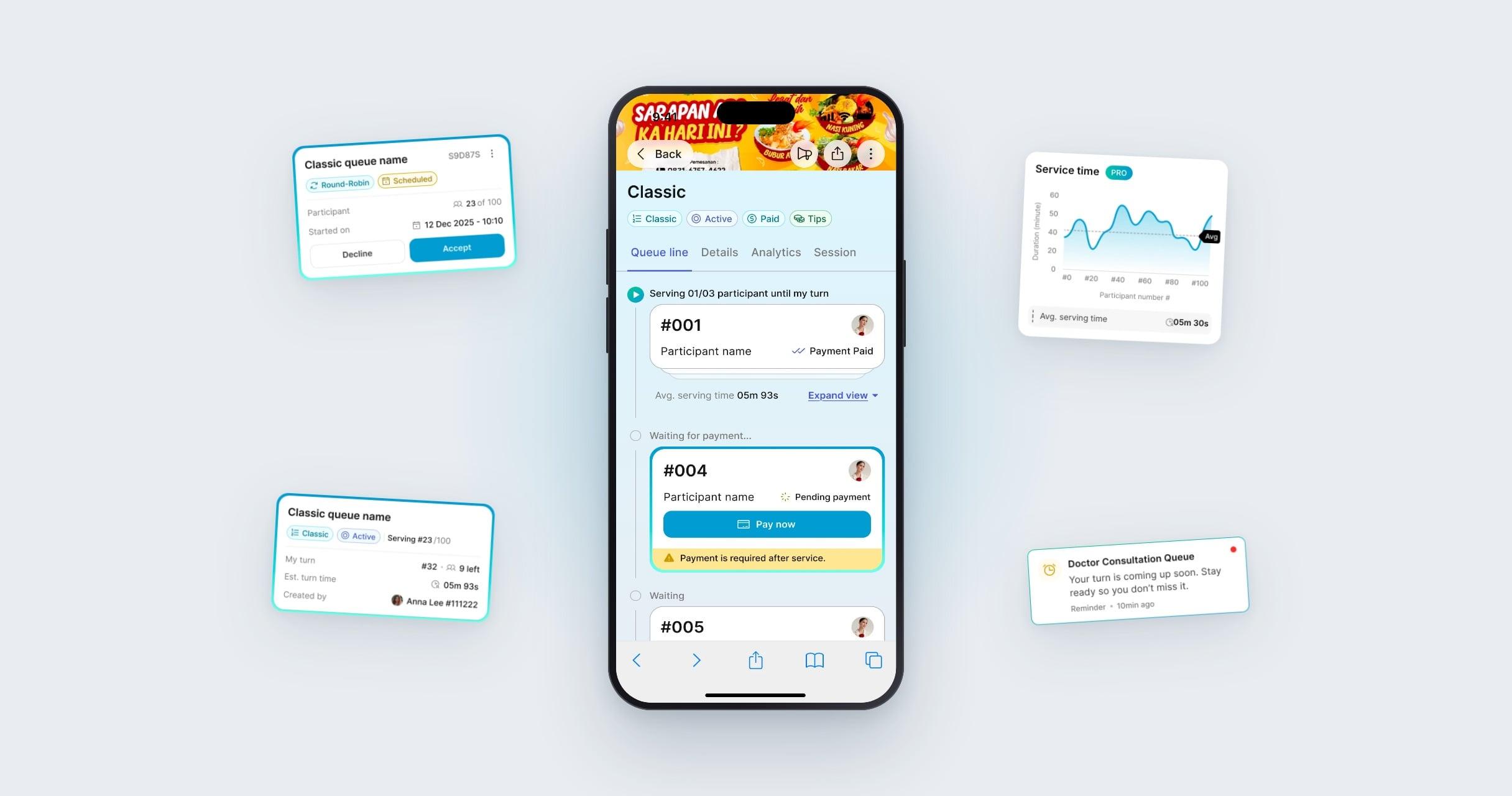
Rainflow Queue
A peer-to-peer queue app where anyone can create a line, share it by QR or link, and run it live as Classic, Round-Robin or Auction.